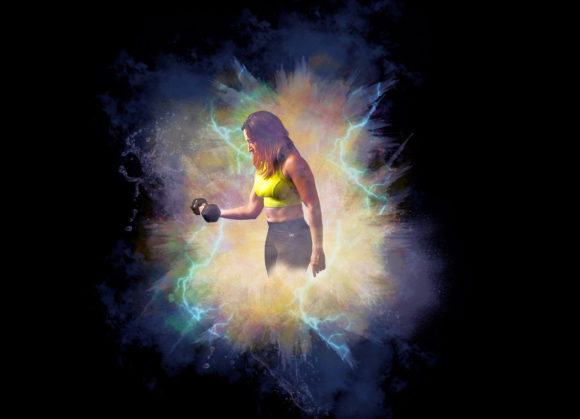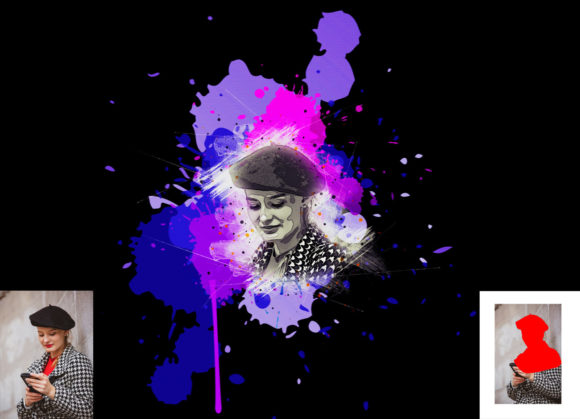
Transform Photos with Artistic Painting Photoshop Action
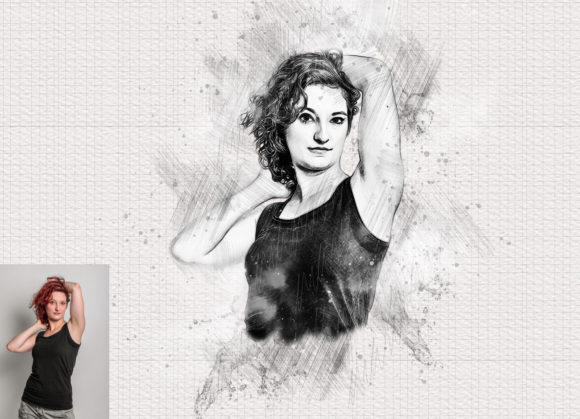
In the fast-paced world of digital content, standing out requires more than just high-resolution imagery. It demands style, emotion, and a distinct visual voice. Whether you are a graphic designer working on a client campaign, a social media manager curating a brand aesthetic, or a hobbyist looking to elevate personal projects, the ability to quickly convert standard photographs into painterly masterpieces is an invaluable skill. This is where the Artistic Painting Photoshop Action becomes an essential tool in your creative arsenal. It bridges the gap between photography and traditional fine art, allowing you to transform ordinary snapshots into extraordinary, textured images with professional precision.
Why Choose a Non-Destructive Workflow?
One of the most significant advantages of using a dedicated action pack is the preservation of your original data. Unlike manual filtering techniques that can permanently alter pixel information, this Artistic Painting Photoshop Action is designed to be completely non-destructive. This means every layer, adjustment, and effect remains editable. For professionals, this is critical. It allows for endless customization without the fear of ruining the base image. You can tweak brush colors, adjust layer opacities, and refine textures long after the initial action has been applied.
The workflow is optimized for efficiency without sacrificing quality. Compatible with a wide range of software versions—from CS4 through to the latest CC2020 English Version—this tool ensures accessibility regardless of your current setup. The organized layer structure means you are not just applying a flat filter; you are building a complex composition that mimics the depth and nuance of real canvas work.
Mastering the Preparation Process
To achieve the best results, preparation is key. Many users skip these preliminary steps, only to find the final output lacks the desired impact. The secret to a convincing artistic transformation lies in the canvas setup. Before running the action, you must extract and extend your canvas area. Simply selecting your background image and using the crop tool to extend all sides creates the necessary border space that mimics a physical painting’s edge.
Resolution also plays a pivotal role. For high-quality prints or crisp digital displays, resize your images to specific dimensions, such as 3000x2000px or 2000x3000px, at 300 DPI. This ensures that the brush strokes and patterns included in the pack retain their clarity and do not appear pixelated. Taking these few extra minutes during the setup phase dramatically enhances the final aesthetic, giving your work a polished, gallery-ready appearance.
Step-by-Step Creative Execution
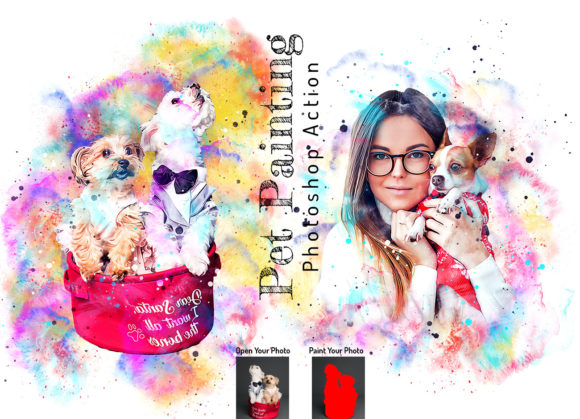
Using the action is straightforward, but understanding the logic behind each step empowers you to break the rules creatively when needed. The process begins by opening your prepared photo and creating a new layer. Crucially, this layer must be renamed “paint” in lowercase. This naming convention is not arbitrary; it allows the script to identify where your manual input belongs.
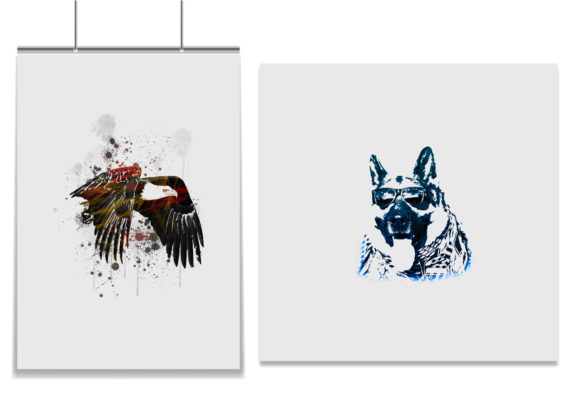
On this “paint” layer, select a brush and lightly paint over the areas of the image you wish to emphasize. This step acts as a map for the action, telling the software where to apply heavier texture and where to keep details sharp. Once you have guided the algorithm, hide the “paint” layer and keep it selected. Clicking the play button initiates the transformation. The action processes the image, generating five different variations. This variety allows you to choose the style that best suits your subject matter, whether it is a soft, impressionistic look or a bold, abstract expressionist vibe.
Exploring Creative Possibilities
The versatility of the Artistic Painting Photoshop Action opens doors to numerous creative applications. For marketers and entrepreneurs, this tool can rejuvenate stock photography, turning generic images into unique brand assets that avoid the "stock photo" cliché. By adjusting brush colors and layer blends, you can align the artwork with specific brand palettes, ensuring consistency across campaigns.
Educators and publishers can use these effects to create engaging visual aids. Historical photos can be given a timeless, painted quality that softens harsh realities while maintaining narrative power. Similarly, bloggers and content creators can differentiate their header images and featured graphics, adding a layer of sophistication that text alone cannot achieve.
For fine artists and illustrators, this action serves as an excellent starting point for mixed-media projects. You can print the resulting image and continue working over it with physical oils or acrylics, blending digital precision with tactile tradition. The included pattern files and brush sets further expand this potential, allowing for intricate detailing that mimics specific artistic movements, from Renaissance realism to modern impasto.
Customization and Control
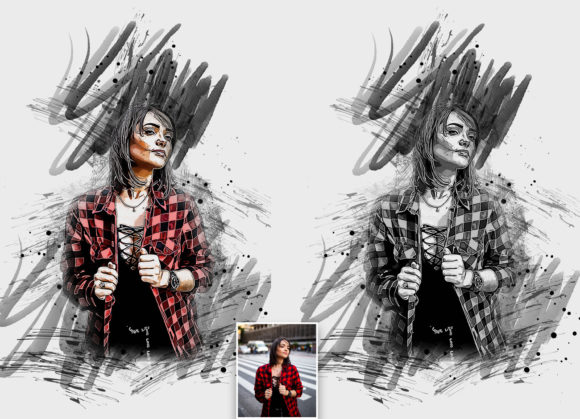
While the action provides a robust foundation, true creativity emerges in the customization phase. The pack includes five different actions, each offering a unique interpretation of the source material. However, the real power lies in the editable layers. You can easily change brush colors to match mood lighting or seasonal themes. If the initial result feels too heavy, reducing the opacity of specific texture layers can bring back photographic clarity. If it feels too flat, enhancing the contrast in the adjustment layers adds depth.
The inclusion of a comprehensive PDF help file ensures that even beginners can navigate these options confidently. It provides detailed instructions on troubleshooting and advanced techniques, making the learning curve gentle yet rewarding. Because the layers are well-organized, you can isolate specific elements—such as the background texture or the foreground subject—and adjust them independently. This level of control ensures that every piece remains original and tailored to your specific vision.
Practical Tips for Consistent Results
To maintain consistency across a series of images, such as a portfolio or a social media grid, establish a preset workflow. Save your preferred layer adjustments as a template after running the action once. This allows you to apply the same stylistic nuances to subsequent photos quickly. Additionally, pay attention to lighting in your original photos. Images with strong contrast and clear subjects tend to yield the most dramatic and effective painted results. Soft, low-contrast images may require more manual painting on the “paint” layer to guide the action effectively.
Remember that technology is a tool, not a replacement for artistic judgment. Use the Artistic Painting Photoshop Action to handle the technical heavy lifting of texture generation and brush simulation, but rely on your eye for composition, color harmony, and emotional resonance. By combining the efficiency of automated actions with intentional human creativity, you can produce work that is not only visually stunning but also deeply engaging.
Ultimately, this tool is about empowerment. It removes the technical barriers to creating painterly effects, allowing you to focus on storytelling and design. Whether you are designing a book cover, enhancing a portrait, or experimenting with new digital art forms, this action provides the flexibility and quality needed to bring your ideas to life. Embrace the process, experiment with the variables, and let your photos evolve into something truly unique.