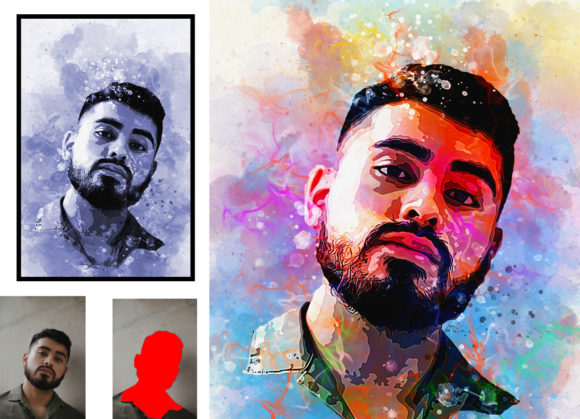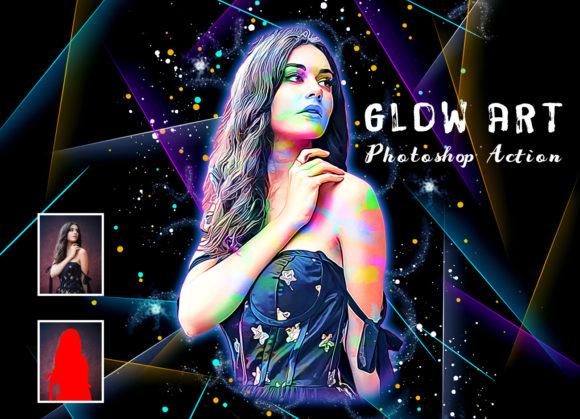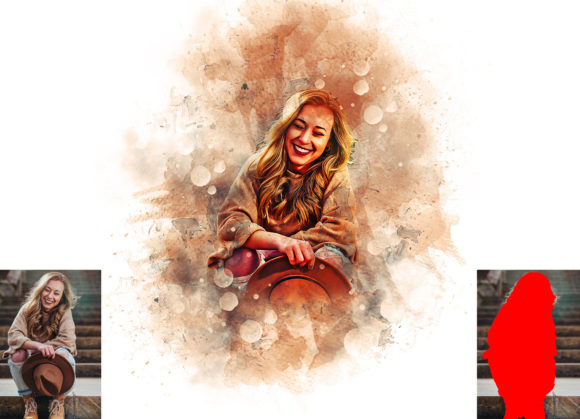
Evaluating the Paint Dripping Effect Photoshop Action for Digital Art
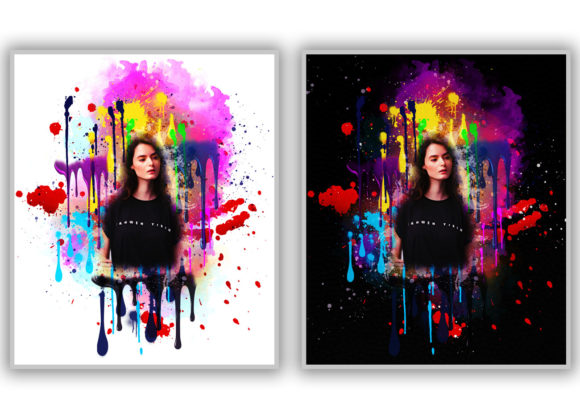
In the realm of digital photo manipulation, achieving realistic fluid dynamics and artistic textures can often be a time-consuming process requiring advanced brushwork and layer management. The Paint Dripping Effect Photoshop Action offers a streamlined solution for designers and photographers looking to integrate this specific aesthetic into their work without starting from scratch. This tool is designed to transform standard photographs into images that feature a convincing paint dripping effect, effectively turning ordinary visuals into stylized, extraordinary compositions. For those evaluating whether this automated workflow aligns with their creative needs, understanding its functionality, compatibility, and practical application is essential.
Understanding the Tool and Its Functionality
The core value proposition of this Photoshop action lies in its ability to automate complex layering and masking processes. Rather than manually painting drips and adjusting opacity settings for each individual element, users can apply a pre-recorded sequence of commands. The action is built to be non-destructive, meaning it preserves the original image data, allowing for reversible edits and flexible customization. This is a critical feature for professional workflows where client revisions or artistic adjustments are common.
The package typically includes not just the action file (.atn), but also supporting assets such as custom brushes, patterns, and a comprehensive PDF help file. These additional resources are vital because the quality of the final output often depends on the initial preparation of the canvas and the selection of appropriate brush strokes. The action provides ten different color options, enabling users to match the paint effect to the mood or branding of the underlying photograph. Because the effect is organized into layers, users can easily tweak colors, opacity, or blending modes after the action has run, ensuring a high degree of control over the final look.
Compatibility and Technical Requirements
Before integrating any new tool into a workflow, technical compatibility is a primary consideration. This specific action is optimized for English versions of Adobe Photoshop, ranging from CS4 up to CC2020. Users operating on newer versions of Photoshop may find that the action still functions, but official support is listed up to the 2020 release. It is important to note that language settings matter; actions recorded in one language interface may not play correctly in another due to differences in menu command names. Therefore, ensuring your software is set to English is a prerequisite for successful execution.
Performance-wise, the action is designed to handle high-resolution files. The recommended workflow suggests resizing images to dimensions such as 3000x2000px or 2000x3000px at 300 DPI. This resolution ensures that the resulting paint textures remain sharp and detailed, avoiding pixelation that can occur when effects are applied to low-resolution web graphics. Users with older hardware should be aware that processing high-resolution images with multiple adjustment layers and smart objects can be resource-intensive, potentially slowing down performance during the rendering phase.
Workflow and Best Practices for Optimal Results
Achieving a professional result with the Paint Dripping Effect Photoshop Action requires adherence to a specific preparatory workflow. The most common mistake users make is applying the action directly to a cropped or tightly framed image. The instructions emphasize the need to extract and extend the canvas area first. By using the crop tool to extend all sides of the background image, users create the necessary negative space for the paint drips to flow naturally off the edges or across the frame. Without this extra space, the effect may appear clipped or unnatural.
The process involves creating a new layer named "paint" in lowercase letters. This naming convention is crucial because the action is scripted to look for a specific layer name to apply the effects. Users then paint over the desired areas of the image using the provided brushes. Once the painting is complete, hiding the visibility of the paint layer and selecting it before playing the action triggers the automation. This method allows for precise control over where the drips originate, ensuring that the effect complements the subject of the photo rather than obscuring it randomly.
Benefits and Tradeoffs
The primary benefit of using this action is efficiency. What might take an experienced digital artist several hours to paint manually can be achieved in minutes. This makes it an excellent choice for high-volume projects, social media content creation, or promotional materials where turnaround time is critical. Additionally, the non-destructive nature of the file structure means that the learning curve is lower than mastering manual fluid dynamics painting techniques.
However, there are tradeoffs to consider. Automated actions can sometimes produce generic results if every user follows the same default settings. To avoid a "cookie-cutter" appearance, users must invest time in customizing the brush strokes and adjusting the color palettes. Furthermore, while the action handles the heavy lifting of layer creation, it does not replace artistic judgment. Poorly placed initial brush strokes will result in poorly placed drips, regardless of how sophisticated the action is. Therefore, a basic understanding of composition and light direction is still required to make the effect look believable.
Ideal Use Cases and Alternatives
This tool is a strong fit for graphic designers working on concert posters, album art, or urban-style advertising campaigns where a gritty, artistic vibe is desired. It is also useful for photographers looking to add a surreal or abstract element to portrait or landscape photography without altering the core subject matter significantly. The ability to choose from ten color options makes it versatile for matching brand guidelines or seasonal themes.
Conversely, if a project requires hyper-realistic fluid simulation with specific physical properties—such as viscosity, surface tension, or interaction with complex 3D geometry—this 2D Photoshop action may fall short. In such cases, 3D software like Blender or specialized fluid simulation plugins might be more appropriate, though they come with a significantly steeper learning curve and higher computational costs. Similarly, for users who prefer complete manual control over every pixel and do not mind the time investment, learning advanced Photoshop brushing techniques may offer more unique and bespoke results.
Making the Decision
When deciding whether to incorporate the Paint Dripping Effect Photoshop Action into your toolkit, consider your current skill level and project deadlines. If you are comfortable with basic Photoshop layer management and need a reliable way to add stylistic flair to images quickly, this action provides a solid foundation. It bridges the gap between amateur editing and professional-grade texturing. However, success depends on following the preparatory steps meticulously, particularly regarding canvas extension and layer naming. By treating the action as a starting point rather than a final solution, users can leverage its efficiency while maintaining the creative flexibility needed for high-quality digital art.