Evaluating the Glow Art Photoshop Action for Creative Workflows
In the realm of digital photography and graphic design, post-processing tools play a pivotal role in defining the final aesthetic of an image. Among the myriad of plugins and scripts available, the Glow Art Photoshop Action has emerged as a specialized tool designed to streamline the creation of luminous, ethereal effects. This article provides an objective evaluation of this action set, exploring its functionality, compatibility, and practical applications to help photographers and designers determine if it aligns with their creative objectives.
Understanding the Tool’s Functionality
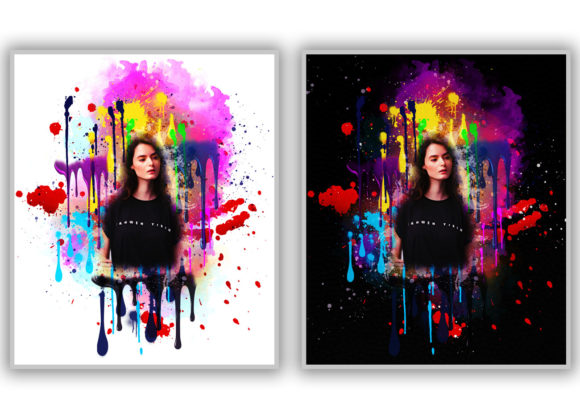
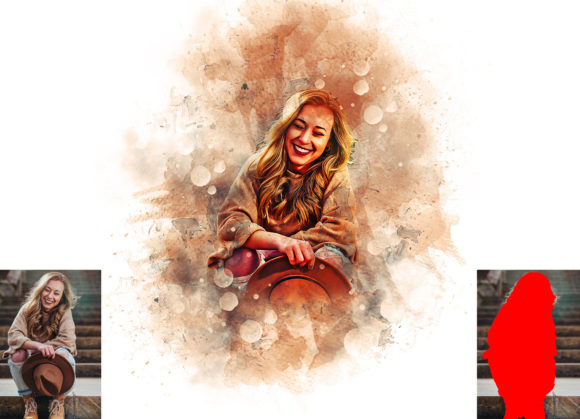
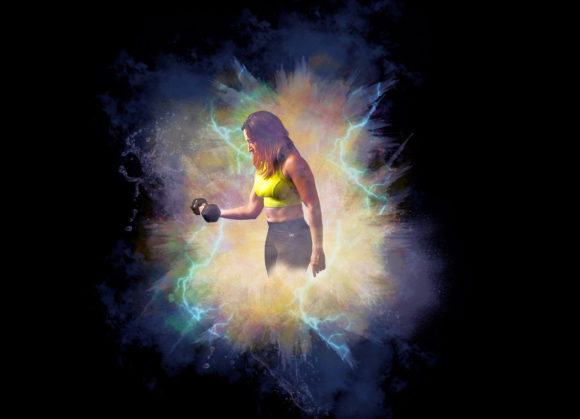
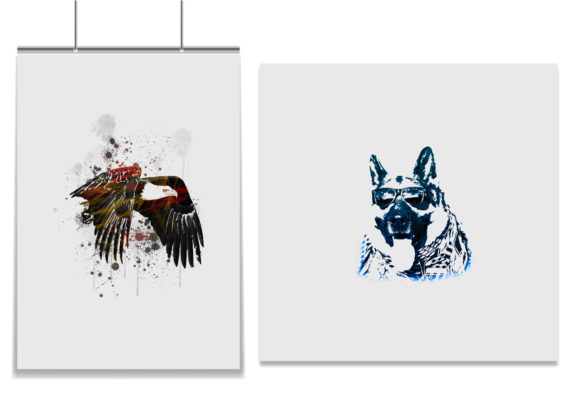
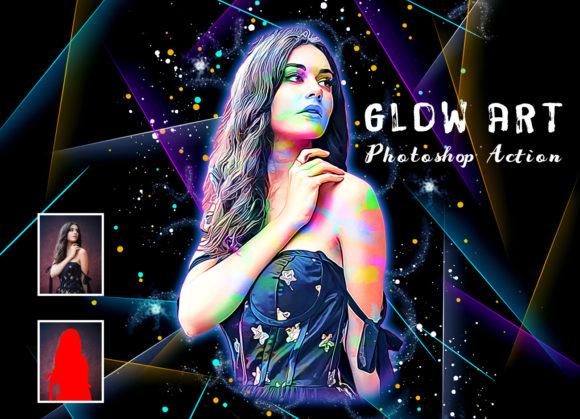
The Glow Art Photoshop Action is essentially a recorded sequence of commands within Adobe Photoshop that automates complex editing steps. Rather than manually adjusting layers, blending modes, and brush strokes to achieve a glowing effect, users can execute this action to apply these changes instantly. The primary purpose of this tool is to enhance images by adding depth, light, and a unique visual texture that distinguishes the final output from standard photographic edits.
At its core, the action set includes ten different brush color options. This variety allows for customization, ensuring that the glow effect complements the specific color palette of the source image. The inclusion of these brushes suggests that the tool is not merely a one-click filter but a semi-automated workflow that requires some user input to achieve optimal results. This hybrid approach balances efficiency with creative control, a feature often sought after by professionals who wish to maintain artistic integrity while reducing production time.
Compatibility and Technical Requirements
Before integrating any new tool into a professional workflow, technical compatibility is a critical consideration. The Glow Art Photoshop Action has been tested and verified to work on the English version of Photoshop CC 2020. However, its support extends across a broad spectrum of Adobe Photoshop versions, including CS4, CS5, CS5.5, CS6, and various iterations of the Creative Cloud suite from CC 2014 through CC 2020.
This wide range of supported versions is a significant advantage for users who may not have access to the latest software updates or who prefer working in stable, older environments. It ensures that freelancers, students, and agencies with diverse software setups can utilize the tool without encountering immediate compatibility errors. It is important to note, however, that the action is specifically designed for the English version of the software. Users operating Photoshop in other languages may encounter issues with layer naming conventions or menu paths, which could prevent the action from executing correctly.
Workflow Integration and Practical Application
Implementing the Glow Art Photoshop Action requires adherence to a specific preparatory workflow to ensure the best possible outcome. The instructions provided with the tool emphasize the importance of canvas preparation. Users are advised to expand the space around their photo before applying the action. This step is crucial because glow effects often extend beyond the original boundaries of the subject. Without adequate spacing, the effect may be cropped or appear constrained, diminishing the intended ethereal quality.
The recommended process involves using the crop tool to resize the image to specific dimensions, such as 2000px by 2000px at 72 resolution. While these dimensions serve as a baseline, they highlight the need for standardized input to maintain consistency in the effect’s scale and intensity. Following this, users must create a new layer named “paint” in lowercase. This specific naming convention is likely tied to the internal logic of the action script, which targets this layer to apply the brush strokes and blending effects.
Once the “paint” layer is prepared and the desired brush color is selected, the user closes the layer’s visibility and triggers the action. This sequence demonstrates that while the tool automates the heavy lifting, it still demands precision from the user. For those accustomed to rigid, non-destructive workflows, this requirement for manual setup may initially seem cumbersome. However, once the routine is established, it becomes a repeatable process that can significantly accelerate batch processing or consistent styling across a project.
Benefits and Tradeoffs
The primary benefit of the Glow Art Photoshop Action is efficiency. Creating complex glow effects manually involves multiple steps, including duplicating layers, applying Gaussian blurs, adjusting opacity, and experimenting with blending modes like Screen or Overlay. By automating these steps, the action saves time and reduces the potential for human error. Additionally, the inclusion of ten different brush colors offers a degree of versatility, allowing users to match the glow to the mood of the image, whether it be warm and inviting or cool and mysterious.
However, there are tradeoffs to consider. The reliance on specific layer names and canvas sizes means that the tool lacks the flexibility of fully manual editing. If a user wishes to deviate from the prescribed workflow, they may need to troubleshoot or adjust the action script itself, which requires a deeper understanding of Photoshop’s automation features. Furthermore, the aesthetic produced by the action is predefined. While customizable via brush color, the fundamental style of the glow remains consistent. This may limit its appeal for designers seeking highly unique, bespoke effects for every project.
Ideal Use Cases and Alternatives
This tool is particularly well-suited for photographers and designers who frequently produce content requiring a dreamy, surreal, or neon-lit aesthetic. It is an excellent fit for social media graphics, album covers, portrait enhancements, and digital art compositions where a consistent glow effect is desired. For professionals handling high volumes of similar images, such as event photographers or e-commerce designers creating thematic banners, the Glow Art Photoshop Action can streamline production without sacrificing visual impact.
Conversely, for users who prioritize complete creative control or work on highly varied projects, alternative methods may be more appropriate. Manual layer masking and custom brush work allow for precise control over where and how the glow appears. Additionally, other plugins or actions that offer non-destructive editing capabilities via smart objects might provide greater flexibility for iterative design processes. Those who are uncomfortable with strict procedural requirements may find the learning curve associated with preparing the canvas and layers to be a barrier to adoption.
Making an Informed Decision
When evaluating whether to incorporate the Glow Art Photoshop Action into your toolkit, consider your current workflow and project needs. If you value speed and consistency and often work within the supported Photoshop versions, this action offers a practical solution for achieving professional-grade glow effects. The inclusion of help files and PDF documentation further supports users in navigating the setup process, reducing the likelihood of frustration during initial use.
Ultimately, the decision hinges on the balance between convenience and customization. For those willing to adhere to the specified preparation steps, the Glow Art Photoshop Action serves as a powerful enhancer, transforming ordinary images into visually striking compositions with minimal effort. By understanding its limitations and leveraging its strengths, users can effectively integrate this tool into their creative repertoire, enhancing their productivity while maintaining high aesthetic standards.